.png)
Audio Optimization
Cimo automatically optimizes your audios as soon as you upload them. When working inside the WordPress Block Editor, simply insert a Native Audio Block and upload your audio to the Media Library. Cimo will instantly convert the file to .mp3 format for improved performance.
To verify that an audio has been optimized, open the audio in the Media Library and check the information panel on the right. If optimization is successful, you will see an “Audio Optimized by Cimo” notice.
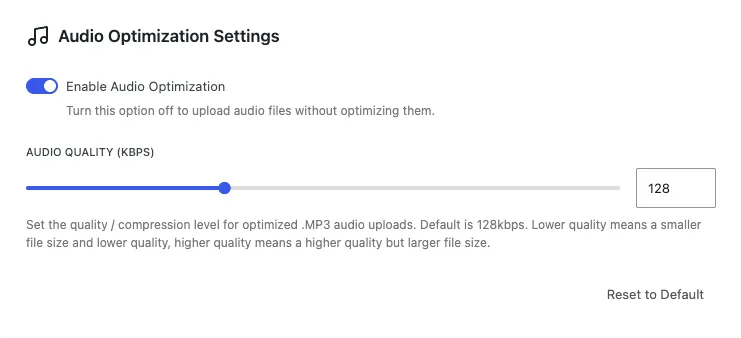
The Audio Optimization Settings let you manage how audio files are processed during upload.
The Enable Audio Optimization toggle determines whether your audio files should undergo compression when uploaded. If you prefer to keep the original file untouched, this option can be switched off.
Under Audio Quality (kbps), you can choose the bitrate used for optimized .mp3 files. The default value is 128 kbps, which provides a balance between quality and file size. Selecting a lower bitrate reduces the file size but also lowers the audio quality, while choosing a higher bitrate produces better sound with a larger file size.
If you want to revert your changes, you can use the Reset to Default button to restore all audio optimization settings back to their original values.