.png)
Bulk Optimization
Bulk Optimization is a Premium Feature.
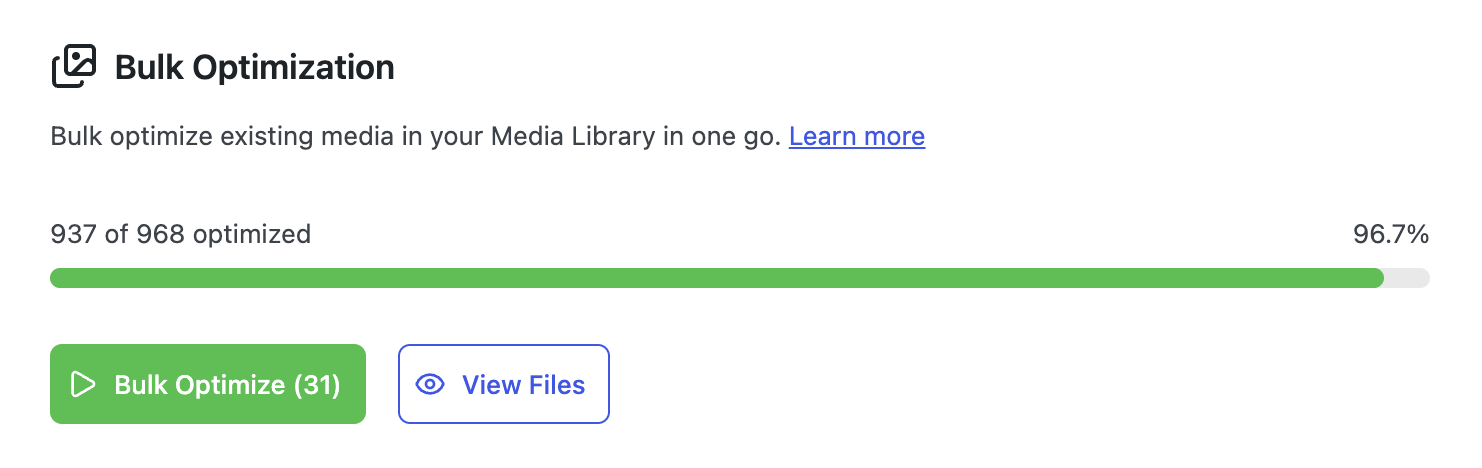
Bulk Optimization helps you optimize all your existing images, video, and audio in your Media Library in one go.
Bulk Optimization follows Cimo's philosophy of doing the work client-side or in your browser, freeing your server resources to work on what's important - catering to your website visitors.
Why should you use Bulk Optimization?
- Improve site performance quickly
- Optimize your existing media files in your Media Library
- Bulk Optimization utilizes Cimo's Smart Optimization
💡 Cimo's Bulk Optimization uses Smart Optimization, which means we do not use a fixed quality rate (for example 80% quality), but instead it uses image comparison to continue optimizing your image up until there is a slight noticeable degradation in quality. This allows Cimo's Bulk Optimization to have possibly higher amounts of optimizations in some cases.
- Original images are left in-tact as backup (you can also delete these backups to free up server space)
Where can I access Cimo's Bulk Optimization?
- Make sure that Cimo Premium is installed
- Go to your WordPress dashboard, and navigate to Settings → Cimo
- The Bulk Optimization area should be near the top of the settings page.
How to perform Bulk Optimization?
While in the Bulk Optimization screen, just click on Bulk Optimize to start optimizing your entire Media Library. You will see some subtle animation effects that would indicate that bulk optimization is currently running. The progress bar updates in real-time to show the progress of the bulk optimization.
💡 You will need to keep open your browser tab for the duration of the bulk optimization. It's best to keep the browser tab active while performing bulk optimization to ensure the optimization runs at optimal speed, hiding or making the browser tab may slow it down.
⚠️ If you accidentally close your tab during bulk optimization, do not worry! You can navigate any time back to Bulk Optimization to continue it.
Advanced usage of Bulk Optimization
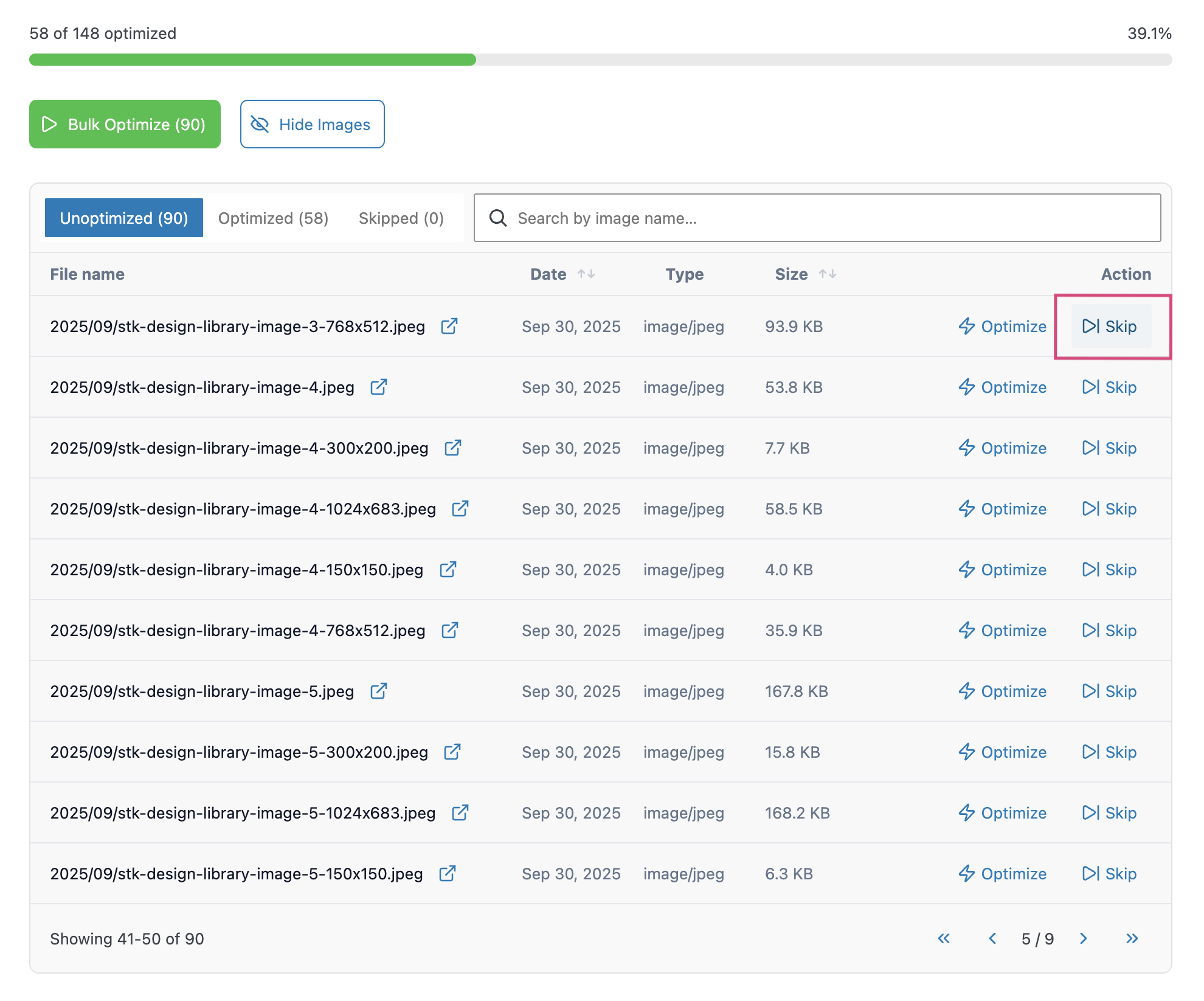
You can manually optimize existing media inside your Media Manager by clicking on the Show Files button. Once open, you should see a list of all the detected media files. In this area, you can:
- Browse all unoptimized, optimized or skipped files
- See the different stats for each media file (filename, file type, file size, amount of savings, etc)
- Manually optimize media
- View optimized and original media files to compare them
- Manually set media to skip bulk optimization
- Restore the backup of already optimized files
- Delete all backup files or individual backup files
Optimization Tabs
Unoptimized
This tab contains all images that have not yet gone through optimization. These are typically newly uploaded images or existing media that haven’t been processed by Bulk Optimization.
From here, you can decide which images to optimize and which ones to exclude.
Actions:
- Optimize – Starts the optimization process for the selected image. This will compress the image and generate a backup of the original file.
- Skip – Excludes the image from being optimized. The image will be moved to the Skipped tab and will not be included in future bulk optimization runs unless unskipped.
Optimized
This tab lists all images that have already been optimized using Cimo. These images have reduced file sizes while maintaining visual quality, and a backup of the original version is stored on your server.
This section allows you to manage optimized files and their backups.
Actions:
- Restore – Reverts the image back to its original (unoptimized) version using the backup file. This is useful if you want to undo optimization for quality or compatibility reasons.
- Delete Backup – Permanently removes the original backup file from your server. This helps free up storage space but means you can no longer restore the original version afterward.
Bulk Action:
- Delete All Backups – Deletes all stored backup files for optimized images in one action. This is useful for cleaning up server space once you are satisfied with the optimized results.
Skipped
This tab includes all images that have been intentionally or automatically excluded from optimization.
Images may appear here because you manually chose to skip them, or because the system determined that optimization was unnecessary or not possible.
Actions:
- Unskip – Moves the image back to the Unoptimized tab, allowing it to be included in future optimization processes.
Bulk Action:
- Clear Skipped – Removes all entries from the Skipped list. This does not delete the images themselves, but clears their skipped status so they can be managed again.
Images are automatically backed up during Bulk Optimization
- Whenever Cimo bulk optimizes a media file, the original file is backed up.
- The backup file uses the same name, with a "-backup" suffix attached to the filename
- You have the option to delete backup files to free up server space
How video and audio optimization works
- Formats are preserved. Unlike uploading a video (where any format is converted to MP4), Bulk Optimization keeps each file in its original format. An MP4 stays as MP4, an MP3 stays as MP3.
- Cimo's video and audio settings are respected. The quality settings you have configured under Cimo's video and audio settings are applied during bulk optimization.
- Only browser-compatible formats appear. The bulk optimization file list only shows formats that are supported for optimization. For example, MOV files will not appear in the list if they are not supported.
Frequently Asked Questions
In Bulk Optimization, why are my images not converted into WebP images?
During bulk optimization, your images are optimized but stay in their own image formats / mime types. This means that JPG images remain JPGs for example. This is in contrast to Cimo's optimization during upload feature where images are converted into WebP instantly when uploading.
Cimo does it this way because only media found in your Media Library are optimized. These images might already be in use in the different parts of your website inside posts and other content. So in order to prevent broken links, or complicated server setups, the image formats and filenames are retained.
Does Bulk Optimization support video, audio and other media files aside from images?
Yes, Bulk Optimization now supports video and audio files alongside images. You can optimize your entire Media Library from images, videos, and audio, all from the same Bulk Optimization screen.
What files can be optimized by Cimo's Bulk Optimization?
Bulk optimization goes through your entire media library media files.
Why are some of my files say they are skipped during Bulk Optimization?
- During optimization a media file can be skipped because of the following reasons:
- Optimization failed because the image was already in its optimal file size and quality
- The image couldn't be fetched for optimization
- An unknown error occurred (if this happens, check the browser console log for the error encountered.
- You can also manually skip a file from being bulk optimized by clicking on the Skip button beside each file. This is helpful if for example, you want a specific file to retain the original quality.
Can I close my window after starting Bulk Optimization?
No, you will need to keep your browser tab open during the bulk optimization. It would be best also to keep your tab focused during the bulk optimization to keep the process ongoing and quickly.